
214 lines
10 KiB
Markdown
214 lines
10 KiB
Markdown
# Face Recognition
|
|
|
|

|
|
[](https://scrutinizer-ci.com/g/matiasdelellis/facerecognition/?branch=master)
|
|
[](https://scrutinizer-ci.com/g/matiasdelellis/facerecognition/?branch=master)
|
|
[](https://www.codacy.com/app/stalker314314/facerecognition?utm_source=github.com&utm_medium=referral&utm_content=matiasdelellis/facerecognition&utm_campaign=Badge_Grade)
|
|

|
|
[](https://www.gnu.org/licenses/agpl-3.0.en.html)
|
|
|
|
Nextcloud app that implement a basic facial recognition system.
|
|
|
|
FaceRecognition is a Nextcloud application with a goal of recognizing, analyzing
|
|
and aggregating face data in users images, and providing additional
|
|
functionalities on top of these information, all with built-in privacy of
|
|
Nextcloud. Imagine Google Photos, but only for faces (not detecting objects…)
|
|
and in such way that your images never leave your Nextcloud instance. :smiley:
|
|
|
|
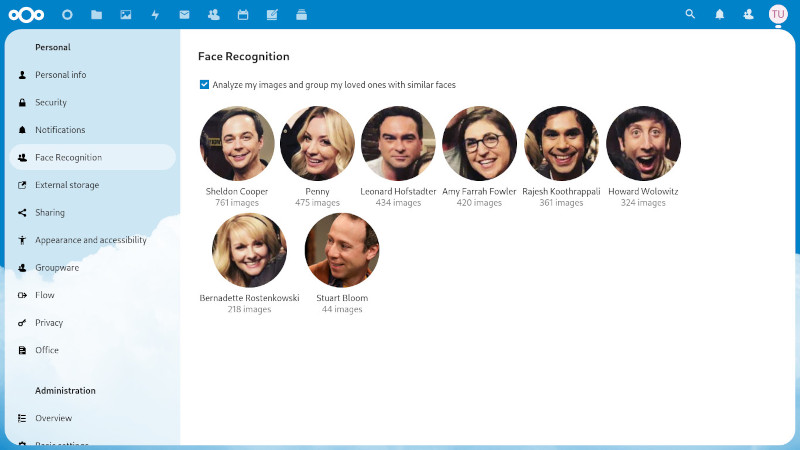
The application listens to the creation of new image files, and queues them for
|
|
later analysis. A scheduled task (Or admin on demand) take this queue, and
|
|
analyze the images for looking faces and if possible identify them grouping by
|
|
similarity.
|
|
|
|
|
|
|
|
## How to use it?
|
|
|
|
The administrator must properly configure the application, and once it is
|
|
working, the user must accept that he wants to allow the analysis of his images
|
|
to discover his friends.
|
|
Finally the user can use the application in three ways
|
|
|
|
1. In the user settings there is a 'Face Recognition' panel where first of all
|
|
each user must enable the analysis. Once enabled, you will progressively see
|
|
the discovery of your friends, and you can assign them names.
|
|
2. In the file application the user can search by typing your friend's name,
|
|
and it will show all the photos.
|
|
3. In the side panel of the file application, a 'Persons' tab is added where
|
|
you can see a list of your friends in the photo, and rename them. Also you can
|
|
select the folders you want to ignore for the process.
|
|
3. In the side panel of the Photos application, a 'Persons' tab is added where
|
|
you can see a list of your friends in the photo, and rename them.
|
|
|
|
## Donate
|
|
|
|
If you'd like to support the creation and maintenance of this software, consider donating.
|
|
|
|
[](https://github.com/matiasdelellis/facerecognition/wiki/Donate)
|
|
[](https://github.com/matiasdelellis/facerecognition/wiki/Donate)
|
|
[](https://github.com/matiasdelellis/facerecognition/wiki/Donate)
|
|
|
|
## Installation, configuration and usage
|
|
|
|
#### Requirements
|
|
|
|
* Nextcloud 22+
|
|
* [Dlib PHP bindings](https://github.com/goodspb/pdlib)
|
|
* [PHP Bzip2](https://www.php.net/manual/en/book.bzip2.php)
|
|
* 1GB of RAM
|
|
|
|
#### Installation
|
|
|
|
Ideally once you meet the requirements, you can install and enable it from the
|
|
nextcloud app store. For details and advanced information read the documentation
|
|
about [installation](https://github.com/matiasdelellis/facerecognition/wiki/Installation).
|
|
|
|
#### Configuration
|
|
|
|
Before proceeding to analyze the images, you must indicate how much memory you
|
|
want to assigns to image processing and then must properly install and configure
|
|
the pretrained models using the `occ face:setup` command. For details and
|
|
advanced information read the documentation about [models](https://github.com/matiasdelellis/facerecognition/wiki/Models#install-models).
|
|
|
|
Then you must indicate the size of the images used in the temporary files from
|
|
the Nextcloud settings panel. This configuration will depend on your
|
|
installation and has a direct impact on memory consumption. For details and
|
|
advanced information read the documentation about [Temporary files](https://github.com/matiasdelellis/facerecognition/wiki/Settings#temporary-files).
|
|
|
|
#### Test the application
|
|
|
|
We recommend test the application intensively before proceeding to analyze the
|
|
real data of the users. For this you can create a new user in your Nextcloud
|
|
instance and upload some photos from the internet. Then you must run the
|
|
`occ face:background_job -u new_user -t 900` command for this user and evaluate
|
|
the result. For details and advanced information read the documentation of this
|
|
command below.
|
|
|
|
#### Schedule background job
|
|
|
|
The application is designed to run as a scheduled task. This allows analyze the
|
|
photos and showing the results to the user progressively. You can read about
|
|
some ways to configure it within our documentation about [Schedule Background Task](https://github.com/matiasdelellis/facerecognition/wiki/Schedule-Background-Task).
|
|
|
|
## occ commands
|
|
|
|
The application add commands to the [Nexcloud's command-line interface](https://docs.nextcloud.com/server/latest/admin_manual/configuration_server/occ_command.html).
|
|
|
|
#### Initial setup
|
|
|
|
`occ face:setup [-M|--memory MEMORY] [-m|--model MODEL]`
|
|
|
|
This command is responsible for making the necessary settings to use the
|
|
application.
|
|
|
|
If `MEMORY` is supplied, it will establish the maximum memory to be used for the
|
|
processing of the images. This value will be limited according to the memory
|
|
available by the system and the php configuration. You can use numbers as bytes
|
|
(1073741824 for 1GB), or subfixed with units (1024M or 1G) but note that it is
|
|
without space.
|
|
|
|
If `MODEL_ID` is supplied. the pre-trained model for facial recognition will be
|
|
installed.
|
|
|
|
You must perform both settings before continuing with any application command.
|
|
If you do not supply any of these options, the command will return the current
|
|
configuration.
|
|
|
|
#### Face analysis
|
|
|
|
`occ face:background_job [-u|--user_id USER_ID] [-t|--timeout TIMEOUT] [--defer-clustering] [-M|--max_image_area MAX_IMAGE_AREA]`
|
|
|
|
This command will do all the work. It is responsible for searching the images,
|
|
analyzing them and clustering faces found in them in groups of similar people.
|
|
|
|
Beware that this command can take a lot of CPU and memory! Before you put it to
|
|
cron job, it is advised to try it out manually first, just to be sure you have
|
|
all requirements and you have enough resources on your machine.
|
|
|
|
Command is designed to be run continuously, so you will want to schedule it with
|
|
cron to be executed every once in a while, together with a specified timeout. It
|
|
can be run every 15 minutes with timeout of `-t 900` (so, it will stop itself
|
|
automatically after 15 minutes and cron will start it again), or once a day with
|
|
timeout of 2 hours, like `-t 7200`.
|
|
|
|
If `USER_ID` is supplied, it will just loop over files of a given user. Keep in
|
|
mind that each user must enable the analysis individually, and otherwise this
|
|
command will ignore the user.
|
|
|
|
If `TIMEOUT` is supplied it will stop after the indicated seconds, and continue
|
|
in the next execution. Use this value in conjunction with the times of the
|
|
scheduled task to distribute the system load during the day.
|
|
|
|
If `MAX_IMAGE_AREA` is supplied caps the maximum area (in pixels^2) of the image
|
|
to be fed to neural network, effectively lowering needed memory. Use this
|
|
if face detection crashes randomly.
|
|
|
|
If use the `--defer-clustering` option, it changes the order of execution of the
|
|
process deferring the face clustering at the end of the analysis to get persons
|
|
in a simple execution of the command.
|
|
|
|
#### Create albums in the Photos app
|
|
|
|
`face:sync-albums [-u|--user_id USER_ID]`
|
|
|
|
This command creates photo albums within the Nexcloud Photos app, with photos of
|
|
each person found.
|
|
|
|
Note that these albums are editable in the Photos app, and any changes will be
|
|
ignored and reverted on the next run of this command.
|
|
|
|
This command is also designed to be run regularly to sync any user changes, as
|
|
this command is the only one that will update albums.
|
|
|
|
If `USER_ID` is provided, it will just sync albums for this user.
|
|
|
|
#### Resetting information
|
|
|
|
`occ face:reset [--all] [--model] [--image-errors] [--clustering] [-u|--user_id USER_ID]`
|
|
|
|
This command can completely wipe out all images, faces and cluster of persons.
|
|
It is ideal if you want to start from scratch for any reason.
|
|
|
|
You must specify if you wish to completely reset the database `[--all]` or just
|
|
the current model `[--model]` and all images must be analyzed again, or or you
|
|
can reset only the clustering of persons `[--clustering]` and only clustering
|
|
needs to be done again, or reset only the images that had errors
|
|
`[--image-errors]` to try to analyze them again.
|
|
|
|
If `USER_ID` is provided, it will just reset the information of a particular
|
|
user.
|
|
|
|
#### Migrate models
|
|
|
|
`occ face:migrate [-m|--model_id MODEL_ID] [-u|--user_id USER_ID]`
|
|
|
|
This command allows to migrate the faces obtained in a model to a new one. Note
|
|
that the persons name are not migrated, and the user must rename them again.
|
|
Always is recommended to analyze from scratch any configured model, but you can
|
|
save a lot of time migrating it.
|
|
|
|
You must specify which model you want to migrate using the `MODEL_ID` option.
|
|
|
|
If `USER_ID` is provided, just migrate the faces for the given user.
|
|
|
|
#### Statistics
|
|
|
|
`occ face:stats [-u|--user_id USER_ID] [-j|--json]`
|
|
|
|
This command return a summary of the number of images, faces and persons found.
|
|
|
|
If `USER_ID` is provided, just return the stats for the given user.
|
|
|
|
If use the `--json` argument, it prints the stats in a json format more suitable
|
|
to parse with other tools.
|
|
|
|
#### Progress
|
|
|
|
`occ face:progress`
|
|
|
|
This command just return the progress of the analysis and an estimated time to
|
|
complete.
|
|
|
|
If use the `--json` argument, it prints the stats in a json format more suitable
|
|
to parse with other tools.
|